
Before you begin
Sign in and select the right business.
The calendar shows appointments; the schedule defines working hours. Change the specialist’s schedule to open times for clients.
Step-by-step guide
Open Appointments
Check the business and specialist filter when available.
Choose a view
Use list for sequential review, day for detailed planning, week for workload and month for date navigation.
Go to a date
Use calendar navigation. Check the selected date before creating a visit.
Open the card
Tap a visit for its client, services, time and status. Continue to editing, rescheduling or repeating.
Check free time
An empty area does not guarantee online availability: hours, breaks, service duration and booking rules apply.
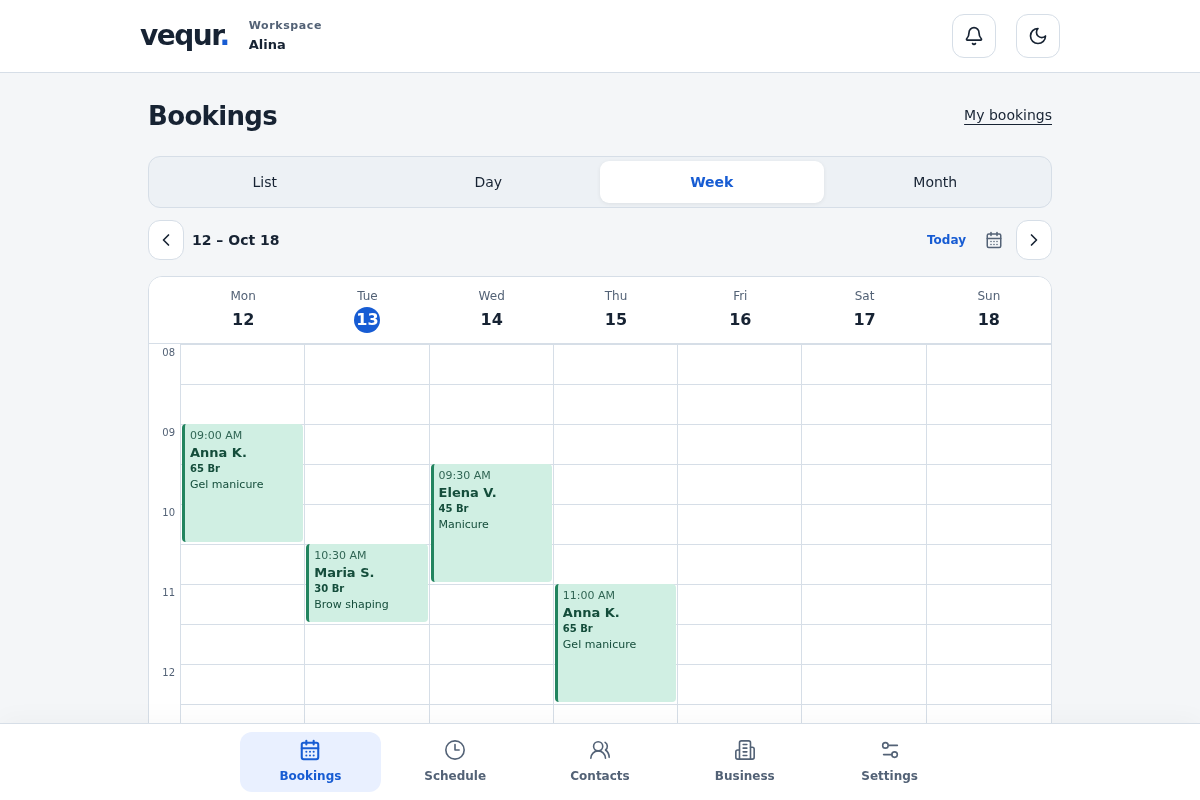
Check the result
You are viewing the right period and can open a specific visit.
Questions and solutions
Some visits are missing
Check date, business and specialist. Try list view when the calendar is crowded.
How do I book free time?
Use Add appointment or an available free-slot action. Recheck the date in the form.
How do I distinguish a request from a confirmed visit?
Read the status label in the card rather than relying on color.