
Before you begin
Enable client groups and check the specialist's standard schedule. A restriction does not block the time: the slot stays free, but only the selected groups can book it online.
A weekday rule applies to that day every week. Use the one-off calendar setting when you need to change a single date.
Step-by-step guide
Enable client groups
Open Settings → Client groups and turn groups on for the business. The automatic new and returning clients groups already exist; add your own with Create group.
Open the specialist's schedule
In Schedule, pick the specialist and then a weekday in the Standard schedule. Restrictions are set for each weekday separately.
Choose appointment times
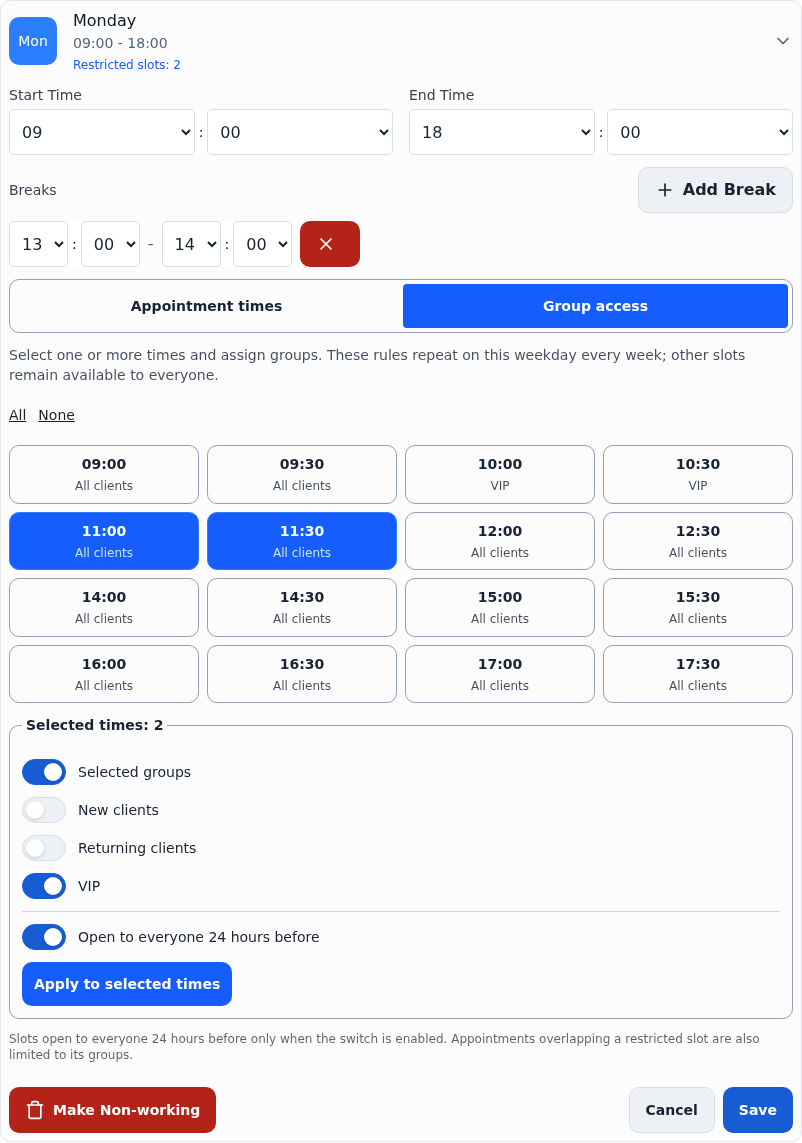
On the Appointment times tab, select the hours when the day is open for booking. A restriction can only be set for a time from this list.
Assign groups to times
Switch to Group access. Select one or more times, turn on Selected groups and tick the groups. All selects the whole day, and Apply to selected times assigns the rule to several hours at once.
Decide whether the slot opens in 24 hours
Turn on Open to everyone 24 hours before if a still free slot should become available to any client in the last day. Without this switch the time stays restricted until it starts.
Save and check the day
The day now shows a Restricted slots counter. Press Save and wait for confirmation; the rule applies to new bookings.
Change a single date in the calendar
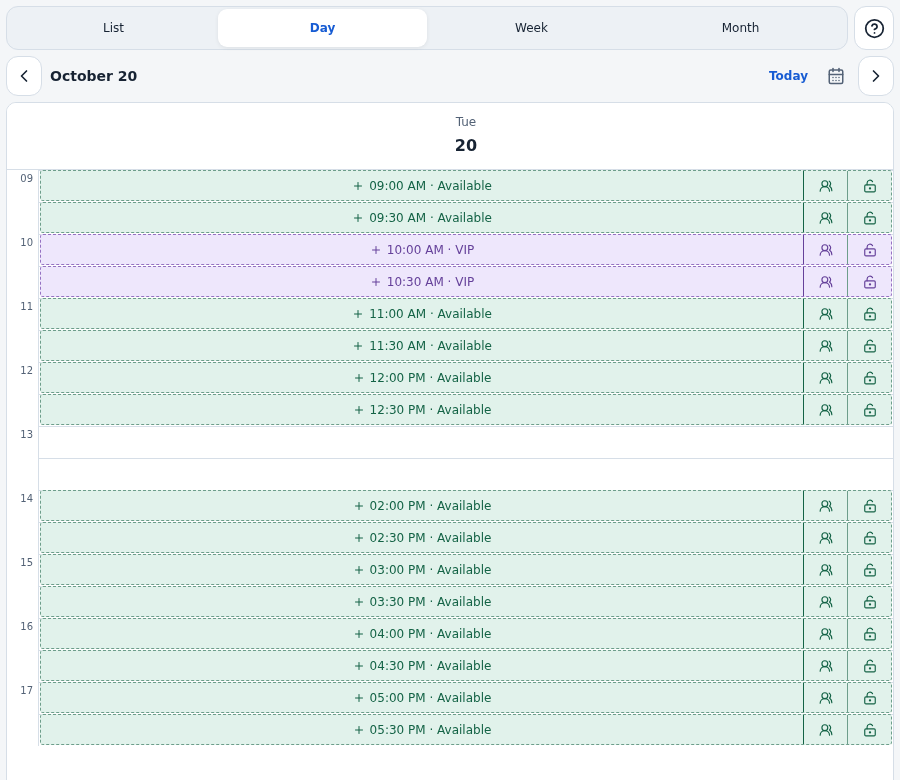
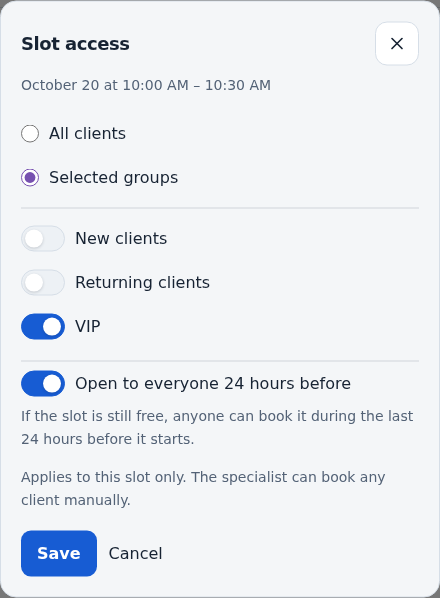
Open Appointments in day or week view and press the two-person icon on a free slot. In the Slot access dialog choose Selected groups, tick the groups and optionally allow the 24-hour opening. This setting applies to that slot and date only and overrides the weekday rule.
Check it as a client
In day view reserved slots are labelled with the group name, and in week view they are highlighted. Open the public link as a group member and as an ordinary client and compare the available times.
Check the result
Clients from the selected groups can see and book reserved slots while everyone else sees only free ones. The day summary and the calendar show where restrictions apply.
Questions and solutions
A group client cannot see the reserved time
Check the client's card in Contacts: a group assigned by hand overrides the automatic one. Then make sure groups are enabled, the time is included in this day's Appointment times and the slot is not taken. New and returning clients are resolved automatically by phone number and completed visits.
The restriction disappeared and everyone can book
The Open to everyone 24 hours before switch is probably on: during the last day before it starts a still free slot is available to any client. Turn the switch off if the time must stay restricted.
The service is longer than one slot
Restrictions are checked for overlap. If a booking that starts earlier overlaps a reserved time, an ordinary client cannot make it. Keep this in mind for long services next to reserved slots.
Can I book another client by hand?
Yes. The restriction applies to online booking; in the calendar the specialist can book any client. The slot becomes busy afterwards.
What happens if I turn client groups off
Saved restrictions stay in the schedule and the reserved times can no longer be booked online. Remove the restriction from those times or enable groups again.
How do I remove a restriction
On the Group access tab select the time, switch to All clients and press Apply to selected times. For a one-off setting, clear the restriction in the Slot access dialog in the calendar.