
Before you begin
The specialist needs services with prices and durations and a working schedule. Configure the business’s public booking link to include it in the image.
The image is a snapshot, not a reservation or a live calendar. Select Refresh slots before publishing. Clients choose a currently available time through your booking link.
Step-by-step guide
Open Free slots on the specialist’s card
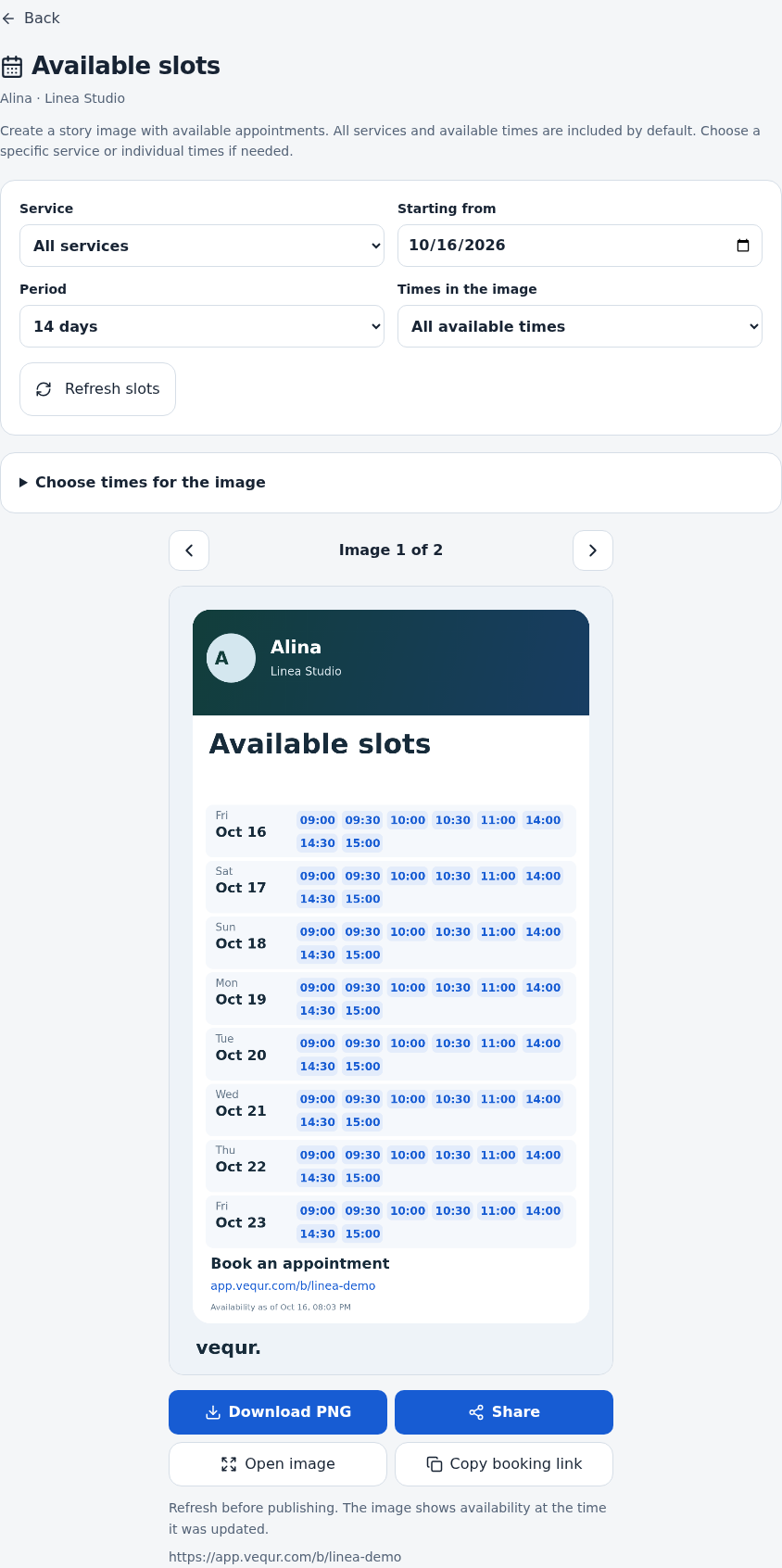
Go to Business, open the business and find the specialist. Select Free slots. Check the specialist and business names at the top.
Choose services and a date range
All services and 14 days are selected by default. You can choose a specific service, a starting date and a period of 7, 14 or 30 days. A specific service uses its duration: a slot for a short procedure may not fit a longer one.
Choose the times to display
Keep all available slots or select the nearest 6 slots per day. To customize the selection, expand the slot picker and check individual times. Select at least one time for an image.
Refresh and check the image
Select Refresh slots, wait for loading and check dates and times. Open image provides a larger preview. When there are several cards, use the arrows: each card is saved and shared separately.
Download the PNG or select Share
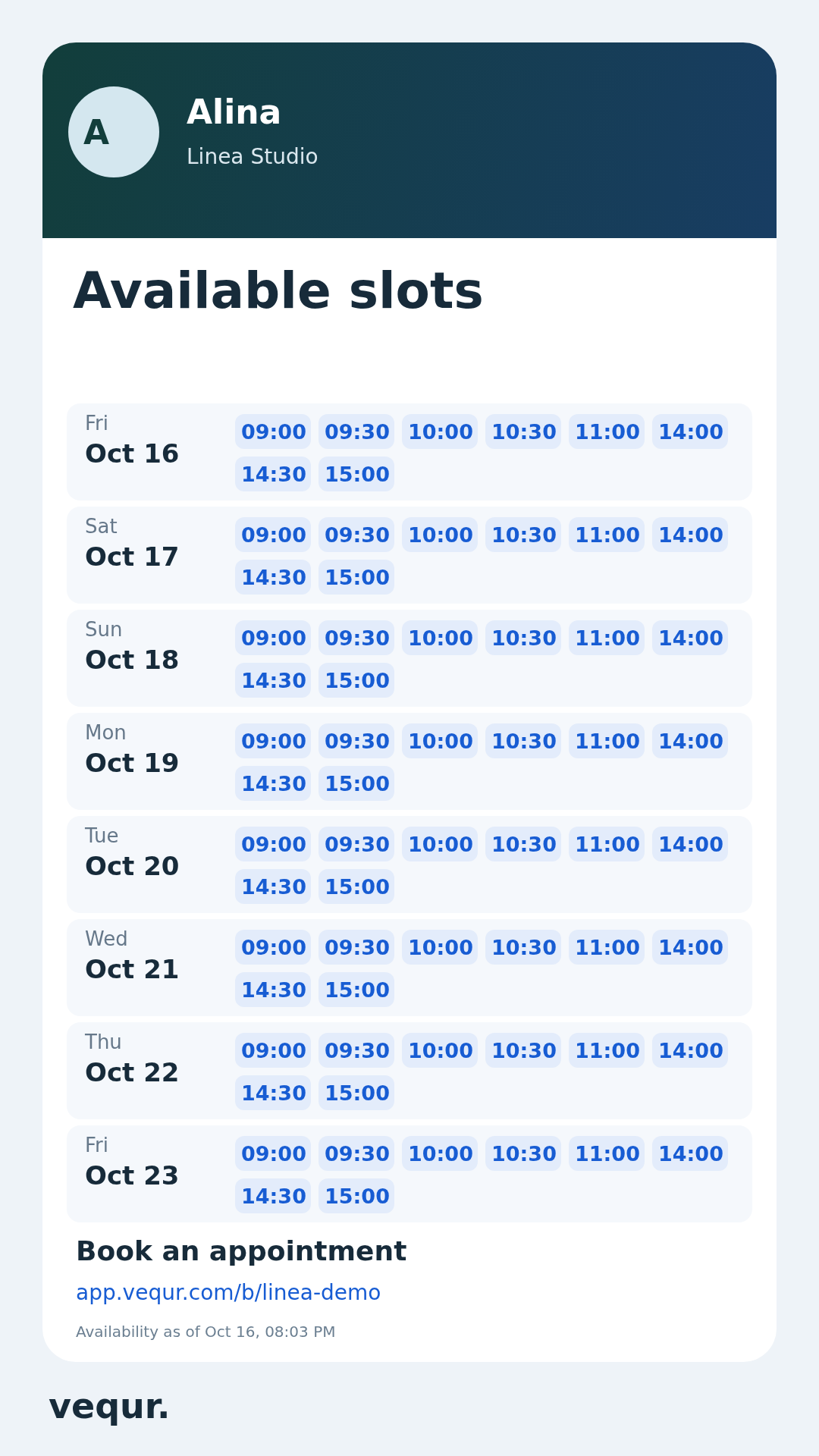
Download PNG saves the current card as a vertical 1080 × 1920 image. Share opens the supported system file-sharing menu. Choose an app and complete publishing there. If file sharing is unsupported, Vequr falls back to downloading; upload the PNG to a story or message yourself.
Add your booking link
A configured public business link appears on and below the image. Copy it and add it to the message or a story link when the platform supports one. An address printed inside a PNG is not automatically a clickable button.
Check the result
You have a PNG with the chosen free times and a current booking link. Review the selected card and publication text before sending it to clients.
Questions and solutions
Where is the quick Share action?
Open the specialist’s card inside Business → Free slots. Download PNG and Share appear below the preview. This is a dedicated screen rather than a screenshot of your calendar.
Can I show times for just one service?
Yes. Choose it in the service list. Times will account for that service’s duration. Wait for the updated preview after changing the selection.
What does All services mean?
It is a general option based on the specialist’s base price list. Choose a specific service when promoting one procedure: availability depends on duration. Services with special group or managed price lists may be excluded from this list.
There are no available times
Check the specialist, base services, date range, working hours, breaks and occupied periods. Try another service or date range. If you unchecked all times, select at least one.
Why does Share download a file?
File-sharing support varies by browser and device. Download the PNG and upload it manually. Opening the sharing menu does not itself publish the image.
Someone booked a time shown in my story
A published image does not update. Refresh slots, create a new PNG and replace the old publication when needed. Availability is checked when the client books.
The image has no booking link
Configure the business’s public link. Without it, the image asks clients to contact the specialist. Reopen the screen after setup, refresh and check the result.
How do I share every card?
Move to the next card with the arrow, wait until it is ready and save or share it. Repeat for the other cards: actions apply to the current one.