
Before you begin
Open the correct business settings. Enable client groups first if confirming selected groups.
Request confirmation, visit completion and payment marking are separate settings. Automatically marking full payment changes received amounts in reports; it does not charge the client.
Step-by-step guide
Open automation
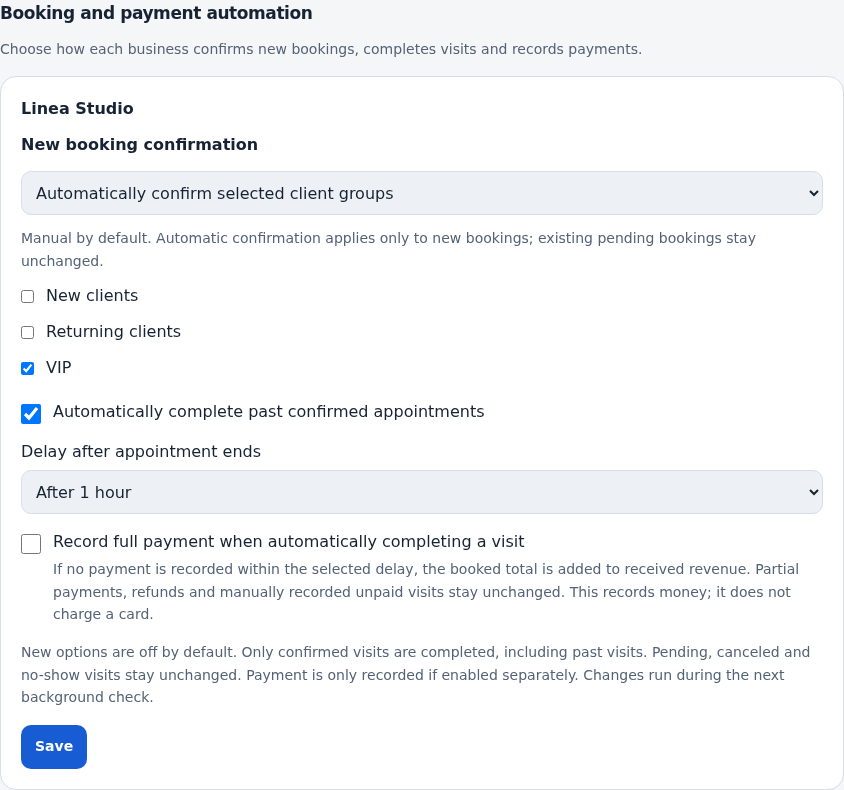
Go to Settings → Booking and visit rules and find the business’s appointment and payment automation section.
Choose request confirmation
Keep manual confirmation or enable all clients or selected groups. Select at least one group when using group mode. Check who should bypass manual review. The mode applies to new appointments; already pending requests are not changed automatically.
Enable completion when needed
Enable automatic completion of past confirmed visits. Choose a delay after their end: immediately, one hour, three hours, one day or two days.
Decide on payment separately
Enable marking full payment on completion only if it matches your accounting practice. Ordinary automatic completion does not mean payment. Partial payments, refunds and manually recorded Unpaid states follow the exceptions explained by the setting.
Save and check
Save and test a request from the relevant group and a past visit. Completion occurs on a background check, not necessarily at the exact second the delay expires.
Account for older visits
Eligible previously ended confirmed visits are included. Pending, canceled and no-show visits are not completed by this action. Review history and reports after changes.
Check the result
You know which requests are confirmed, when visits close and whether payment records change too.
Questions and solutions
Why did it not finish exactly on time?
The next background check must run. Check visit end, delay, confirmed status and background processing.
Why is a request still pending?
Review confirmation mode, chosen groups and client membership. Automatic completion alone does not confirm a request. The new rule applies to new appointments; review an already pending request manually.
What happens to a deposit?
The full-payment option preserves its specified exceptions for partial payments and refunds. Review the visit and setting explanation.
Can I keep completion without auto payment?
Yes. Disable full-payment marking, keep completion and save.
Will disabling undo earlier changes?
Do not expect an automatic rollback. Review affected cards separately and correct them when needed.