
Before you begin
You need a business with appointments. Record payments correctly in visit cards for useful financial figures.
Booked service value, expected revenue and received payments are different. A created appointment is not money already received.
Step-by-step guide
Open analytics
Follow the link from the business card or overview. Check the business.
Choose a period
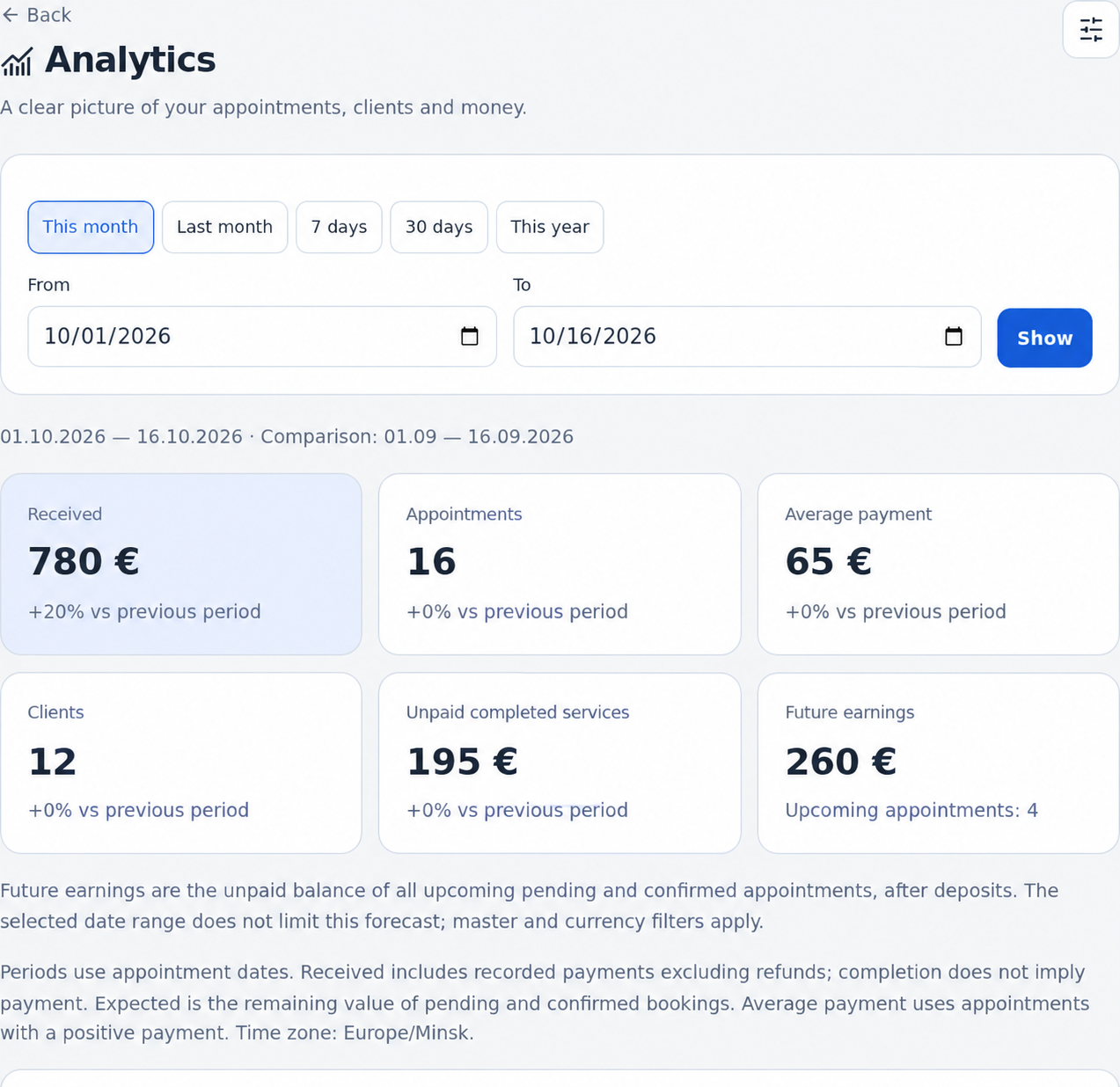
Use a preset or enter start and end dates and select Show. Check the previous period used for comparison.
Review filters
Choose specialist and currency when available. Compare the same context. Do not add different currencies without conversion.
Read indicators and chart
Review received payments, visits, clients, average receipt and outstanding amounts. Tap a chart bar for day or interval details.
Review visit outcomes
Check completed, confirmed, pending, canceled and no-show visits, plus specialist and service breakdowns.
Correct source data if needed
Edit incorrect payments or statuses in the appointment card, then return and refresh the report.
Check the result
The report uses the right period and financial amounts are compared with recorded payments.
Questions and solutions
Received is less than booked value
Check payments, statuses, refunds, period and currency. A future visit is not a received payment.
The report is empty
Check business, dates, specialist and currency. There may be no matching visits.
Does completion mean payment?
Check payment separately in the card. Visit and payment statuses are distinct.