
Before you begin
Open the right business workspace. Use demonstration contacts while learning.
A business contact card does not replace the client verifying their own phone through Telegram.
Step-by-step guide
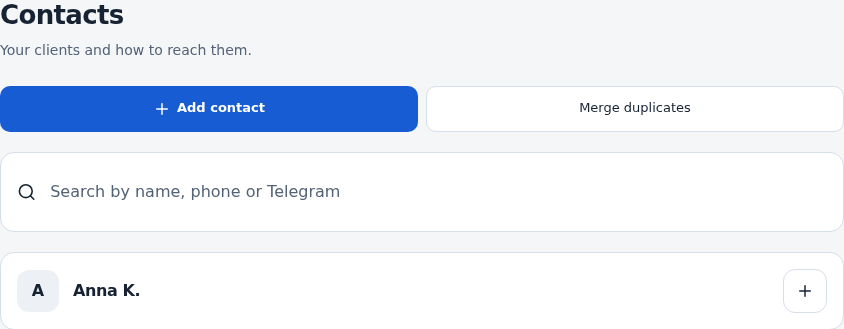
Open Contacts
Check the business and search using available contact details.
Check the card
Review name, phone numbers and Telegram. Check additional details when contacts look similar.
Update details
Edit and save name or contact information. Entering a number here does not verify its owner.
Review history
Check linked visits and notes. Open an appointment for services, status or payment.
Prepare another visit
Use the card’s booking action or select the contact in Add appointment. Recheck the populated phone.
Check the result
Details are current and new visits use the right client.
Questions and solutions
I cannot find the client
Check business and try phone search. Review existing cards before creating a duplicate.
The client cannot see their history
Ask them to verify the phone in Telegram. It must match the appointment. An internal contact and a client account are separate.
There are client groups
Group settings are under Settings → Client groups. Test special conditions separately with a group member and a regular client.