Before you begin
Sign in to Vequr and open Telegram with the same account. You can verify your own number linked to that account.
Use “📱 Отправить свой номер” (Send my number). A typed number, someone else’s contact or a forwarded contact does not verify ownership. This bot flow currently uses Russian messages.
Step-by-step guide
Start verification in Vequr
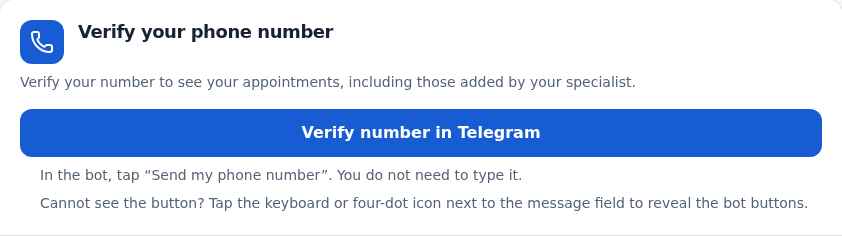
Open Settings and find Verify your phone number. Tap Verify number in Telegram. The same prompt may appear in My appointments. You can also use the bot link below.
Open the private @vequrbot chat
Minimize the Mini App if it is covering the conversation. Tap Start if prompted. Wait for the message asking you to share your number.
Reveal the bot keyboard
The contact button is below the message field. If it is hidden, tap the keyboard icon or four dots next to the input. Bot buttons are separate from your letter keyboard and the commands menu on the left.
Tap “📱 Отправить свой номер”
Use the wide contact-sharing button. Confirm if Telegram asks permission to share your own contact. Do not type the number manually.
Wait for “Телефон подтверждён”
This means Phone verified. The bot also reports how many appointments it found. If it asks you to retry, verification has not finished.
Return to Vequr
Tap “Открыть мои записи” (Open my appointments) in the reply, or return to Vequr. The app rechecks your status when you return. Refresh if needed, then check My appointments.
TELEGRAM
Button missing? Reveal the bot keyboard
Tap the four dots in the diagram. The contact-sharing button appears below the message field.
The button is below the message field, not inside the bot’s reply.
 @vequrbot
Tap “Отправить свой номер” (Send my number). You do not need to type the number.
Check the result
Your phone is verified. Eligible appointments for this number appear in My appointments, including new visits a specialist creates for you.
Questions and solutions
How do I restore the hidden button?
Tap the keyboard icon or four dots next to the message field. If the buttons are still missing, reopen the verification link from Vequr. Practice with the diagram below.
I only see the letter keyboard
Tap Telegram’s keyboard toggle in the message input row to show bot buttons. Its appearance and position vary by device and version.
I typed my phone number
Text does not prove ownership. Reveal the bot keyboard and tap “📱 Отправить свой номер”.
The bot could not verify the contact
Use the button to share your own contact from the same account. If another Vequr account already verified this number, sign in there: resending does not transfer it.
It found zero appointments
Verification still succeeded. Ask the specialist which number was used. Appointments under another phone or already linked to another account are not transferred automatically.
How do I cancel verification?
Send /cancel. To restart, reopen the verification link.