

iPhone / iPad · Safari
Install with Safari
Add Vequr to your Home Screen to open it as a standalone app.
Push notifications require iOS / iPadOS 16.4 or later and launching from the Home Screen icon. This notification option is not available in a regular Safari tab.
Open the app in Safari
Type app.vequr.com in Safari’s address bar. If you followed a link from Telegram, use the link menu to open it in an external browser. If that option is missing, copy the address and paste it into Safari.
Open the Share menu
Tap the square with an upward arrow. Depending on your Safari version and toolbar layout, it may be on the browser toolbar or inside the More menu.
Choose Add to Home Screen
Scroll through the list of actions. If it is missing, check Edit Actions. The wording may vary with your iOS version and language.
Confirm the installation
Keep the name Vequr. If you see Open as Web App, turn it on. Tap Add.
Launch Vequr from its new icon
Go back to your Home Screen, tap Vequr and sign in if asked. You are ready to enable notifications.
The Vequr icon is on your Home Screen. Use this icon to launch the app.
Android · Chrome
Install with Chrome
We recommend Chrome on Android. You will find installation in the browser menu.
Add app.vequr.com — the app’s address. If the link opened inside Telegram, move it to Chrome first.
Open app.vequr.com in Chrome
Use a regular Chrome tab, rather than Incognito or another app’s built-in browser.
Tap the ⋮ menu
Look next to the address bar for Install and create shortcut, Install app or Add to Home screen. The label depends on your Chrome version.
Confirm installation
If offered a choice between installing the app and creating a shortcut, choose installation. Confirm in the dialog.
Launch Vequr and sign in
Find its icon on your Home screen or in your app list. Open Vequr and continue to notification settings.
Open Vequr from its icon. If only a shortcut is available, you can also keep using the app in Chrome.
Telegram · Mini App
Use Vequr inside Telegram
Works on both iPhone and Android. You do not need to add the web app to your phone’s Home Screen for this option.
Bot messages and installed web app push notifications are separate channels. Check Telegram’s permissions for bot messages.
Open @vequrbot
Follow the button below. If Telegram asks you to start the bot, tap Start.
Launch the app from the bot
Tap the app launch button in the chat or bot menu. Vequr opens inside Telegram.
Check Telegram notifications
Keep the bot unblocked and unmute the @vequrbot chat. Allow notifications for Telegram in your phone’s system settings.
Vequr opens inside Telegram. Pin the bot chat to return quickly.
Next step
Now enable notifications
Do this on each device where you want to receive push notifications.
On iPhone, first leave the Safari tab and open the installed Vequr from your Home Screen. Permission is requested after you tap the control in the app.
Go to Settings → Notifications
Sign in to Vequr and open your account settings. Choose Notifications.
Turn on Enable notifications
Use the switch in the push notifications section and choose Allow in the system prompt. Wait for confirmation that your subscription is active.
Check the result
Return to this section: the switch should be on and permission granted. If you see an error, setup is not complete yet. Use the tips below.
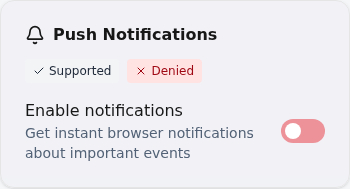
Notifications are connected when Vequr confirms the subscription. Allowing the system prompt alone is not enough.
Need a hand?
There is no notification prompt on iPhone
Check that you have iOS 16.4 or later. Open Vequr from its Home Screen icon, sign in and tap the notifications switch. A Safari tab or a window inside Telegram will not work for this.
I already tapped Don’t Allow
On iPhone, open system Settings → Notifications → Vequr and allow notifications if Vequr is listed. On Android, check Vequr and Chrome permissions in phone settings, as well as app.vequr.com site permissions in Chrome. Then return to Vequr and enable the subscription again.
Permission is granted, but messages do not arrive
Check that Vequr confirmed your subscription. Make sure phone settings allow notifications and Focus / Do Not Disturb is not hiding them. On Android, check background activity and battery restrictions. For bot messages, check the chat and Telegram permissions separately.
I cannot find the install option
Make sure app.vequr.com is open in external Safari or Chrome. Update your browser and check whether the app is already installed. Installation may be restricted by an administrator on managed devices.
Do I need to sign in again after installing?
The installed app may ask you to sign in again. Use the same Telegram account. Adding the icon does not create another account.
Browser instructions
Menu labels and positions may vary. For more details, see the official Apple and Google instructions.